 Oplito
See where your disk went
See what is taking up space on your Mac
A map of concentric rings shows the biggest folders first. Click to drill in, tick what to drop, and move it to the Trash in one step.
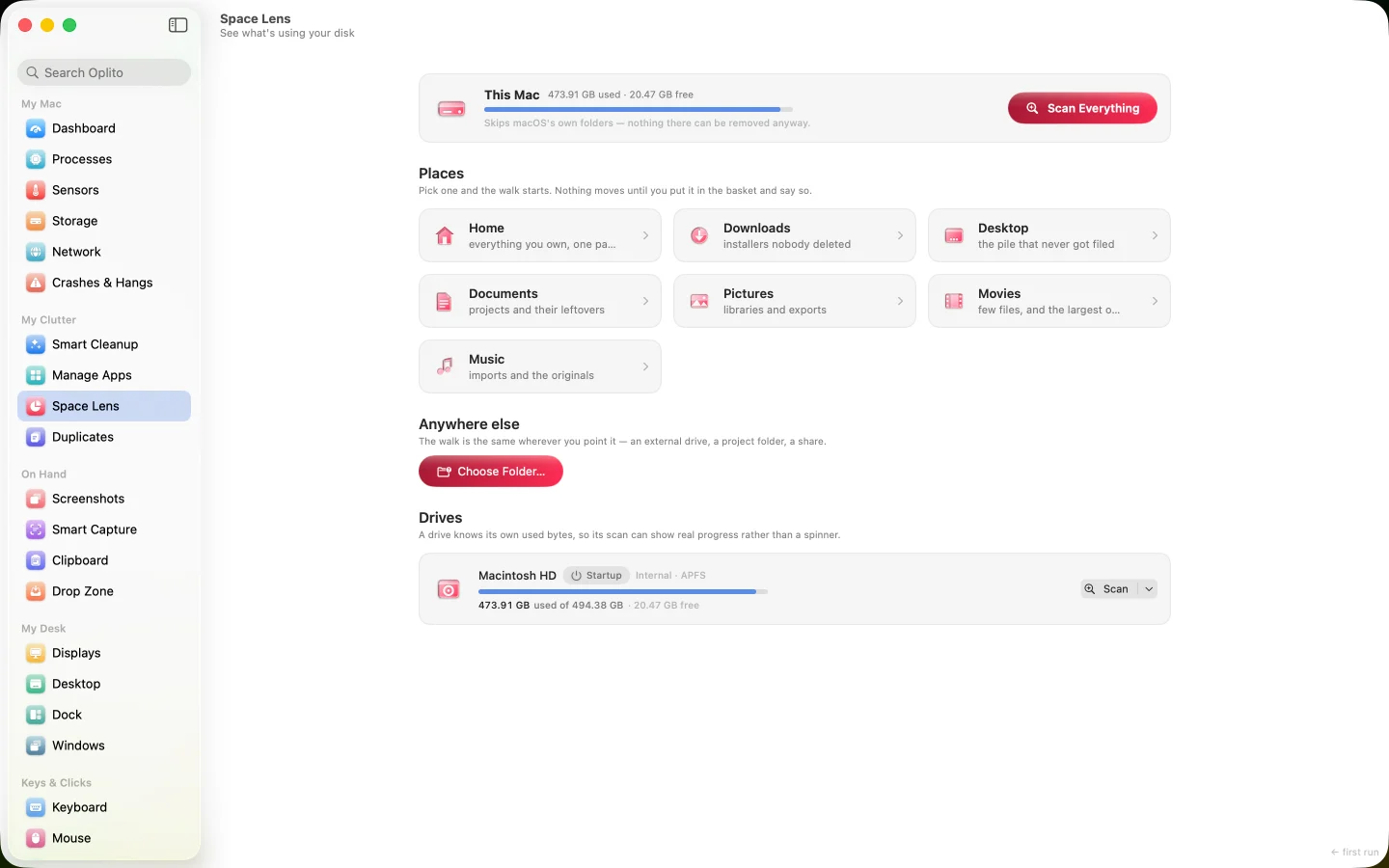
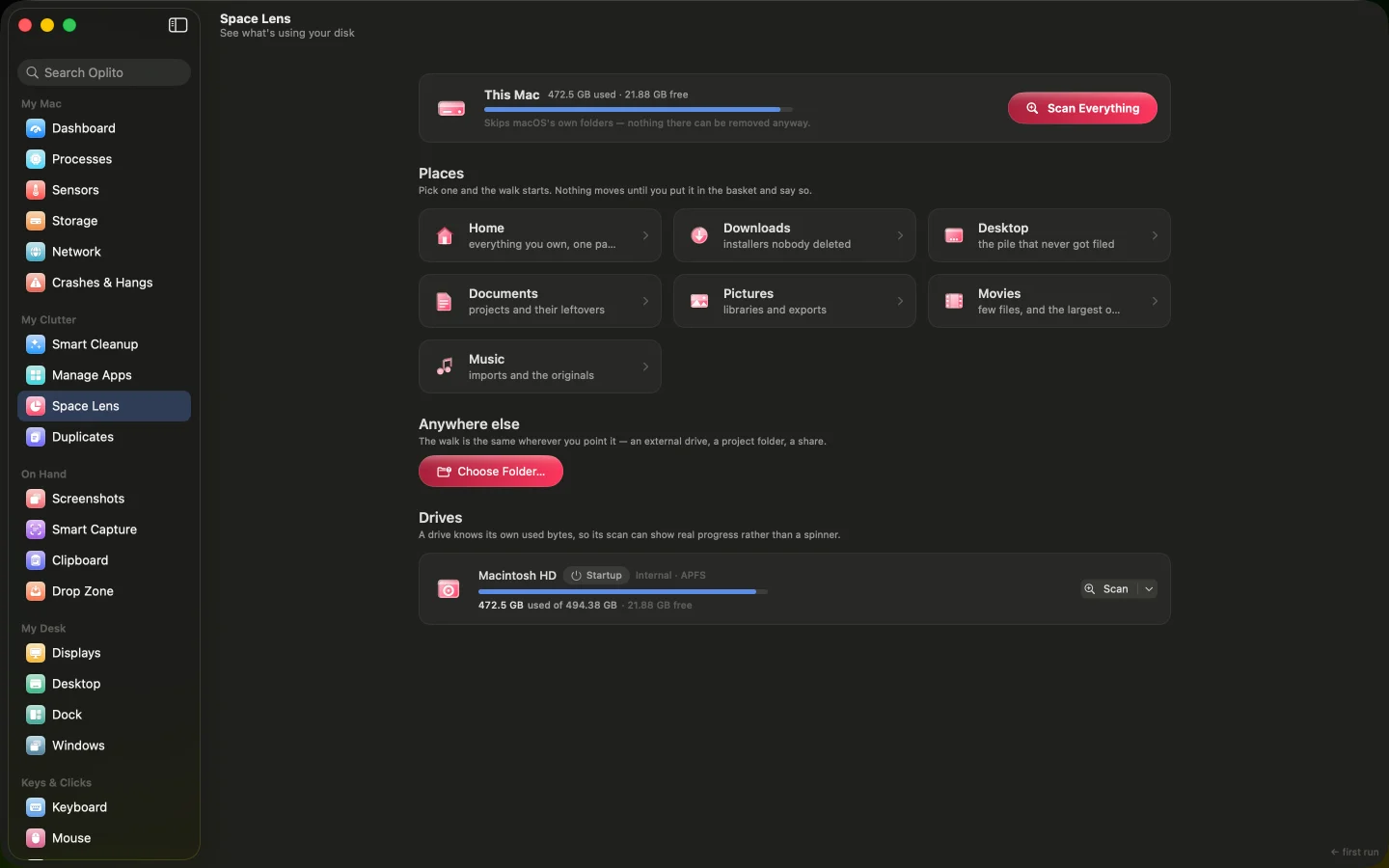
A capture of Oplito, running on a Mac. Its readings are that Mac’s.
Film
See Space Lens at work
What Space Lens does
A map of concentric rings shows the biggest folders first. Click to drill in, tick what to drop, and move it to the Trash in one step.
Spot the big things fast
Rings are swept in proportion to size, largest first, so a folder taking half your disk looks like half the circle.
Delete in one deliberate step
Stage items in the Trash basket, review the total, then confirm once. Nothing moves until you press Move to Trash.
Totals you can trust
Sizes are exact whatever the map draws, and a progress bar appears only where Oplito knows the real total, never an invented one.
How it works
How to use Space Lens
- 1
Open Space Lens and click a place, or choose another folder or drive.
- 2
Click an arc or a row to open a folder; use the breadcrumb or hub to go back.
- 3
Tick items, or drag them into the Trash basket.
- 4
Open the basket, check the total, and press Move to Trash.
Details
The details
What you see
- A sunburst of folders One ring per level below the folder on screen. The hub shows the total, and clicking it goes up one level.
- A list beside the map Inside lists each child largest first, with its share of the folder as a tinted bar. Smaller items collapse into one summary row.
- A basket for deleting Tick a row or drag it to the basket. The tick and the basket are one selection, which survives moving between folders.
- A fast, gentle scan The map fills in branch by branch while it scans. Cloud files are never downloaded to measure them.
- Refusals are named If macOS blocks a folder, a banner shows sample paths and the permission that would open it. A whole-Mac scan skips root-owned items.
What it never does
- Clicking never deletes: only folders open, and removing takes a confirmed Move to Trash.
- It never downloads cloud-only files to measure them.
- It never shows free or hidden space, only what is on the disk.
- Open a folder
- Click an arc, or the right four-fifths of a row
- Pick a row
- Click the left fifth of it
- Go up
- Click the hub or use the breadcrumb
- Row menu
- Reveal in Finder, Open Here, Add to Trash basket
- Drag
- One row per drag onto the basket
- Stop
- The only control on the path bar during a scan
- Start screen
- This Mac, Places, Anywhere else, Drives
- Not stageable
- Summary rows and anything the Trash would refuse
- Partial failure
- Items that could not move stay in the basket with the reason
- Reversible
- Yes, until you empty the Trash
Privacy
Permissions and privacy
Folder sizes are measured on your Mac and files only ever move to the Trash. Cloud-only files are never downloaded to measure them.
Permissions it needs
Full Disk Access for a whole-Mac scan; Desktop, Documents or Downloads individually for those folders; Removable Volumes for drives. If refused, the map still draws what it could read.
What it reads
Folder sizes, measured on your Mac.
What leaves your Mac
Nothing. Files only ever move to the Trash.
Questions about Space Lens
Does clicking a file delete it?
No. Only folders open when you click. Deleting means staging items in the basket and confirming once with Move to Trash, which names the count, size and how to recover.
Can I undo a removal?
Yes, until you empty the Trash. Before that, Put back removes an item from the basket, and nothing has moved yet.
Why can't I use the map during a scan?
The map draws as it goes but cannot be hovered, opened or staged from until the scan ends, because the shapes under the pointer may change a moment later.
Does it show free space?
No. The map shows only what is on the disk, and never shows free or hidden space. Hard-linked and cloned files may be counted twice.

Every tool. All the AI. One price.
All 30 tools and every AI feature for $99 once, or $39 a year. Try them all free for 7 days at launch, cancel any time.
One email at launch, and nothing else · macOS 26 on Apple silicon