 Oplito
What your connection is doing
A Mac network monitor that shows where the connection breaks
Network shows which apps use the network, how the Wi-Fi is, how fast and steady the internet is, and where a connection breaks. It only shows; it never blocks anything.
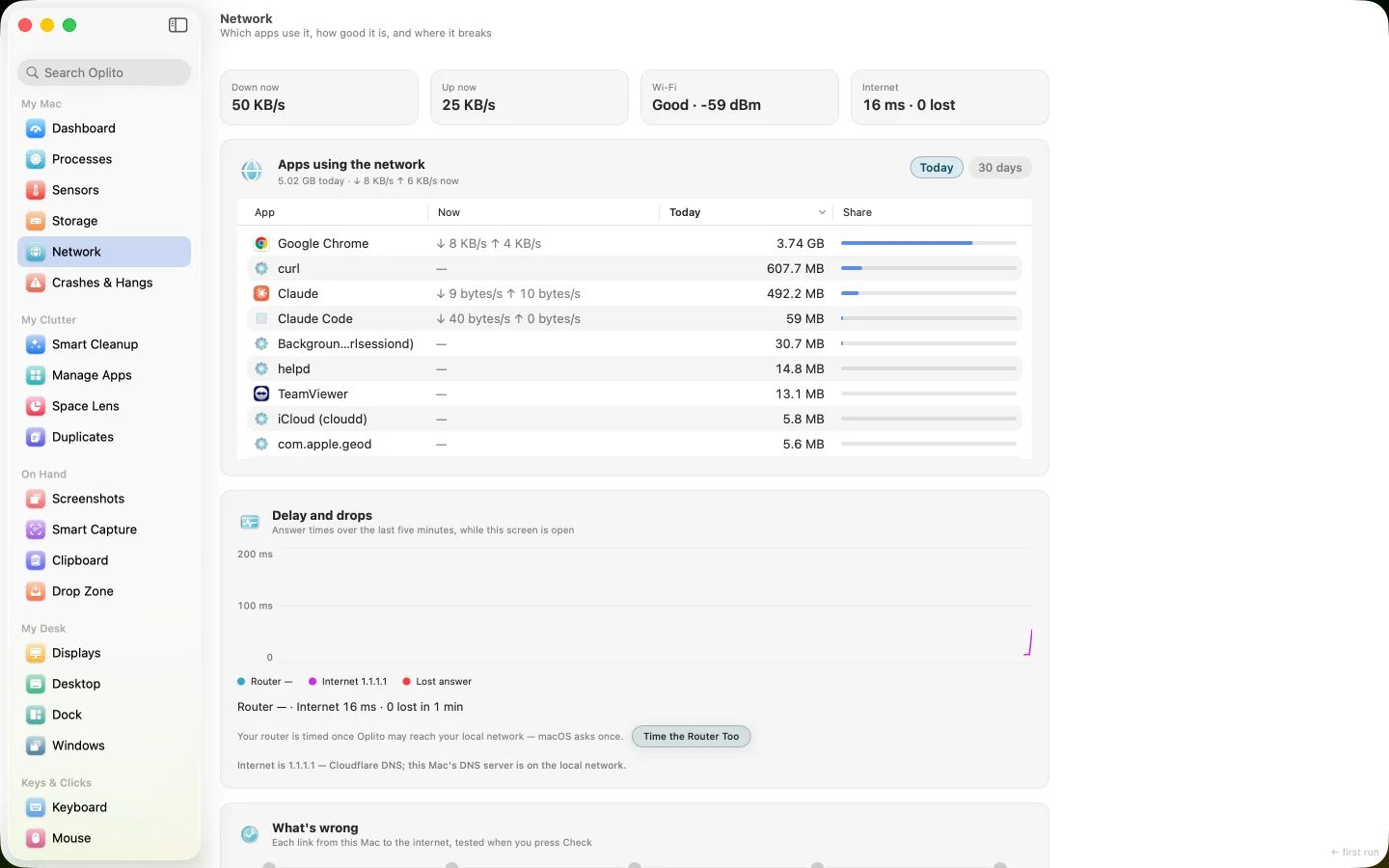
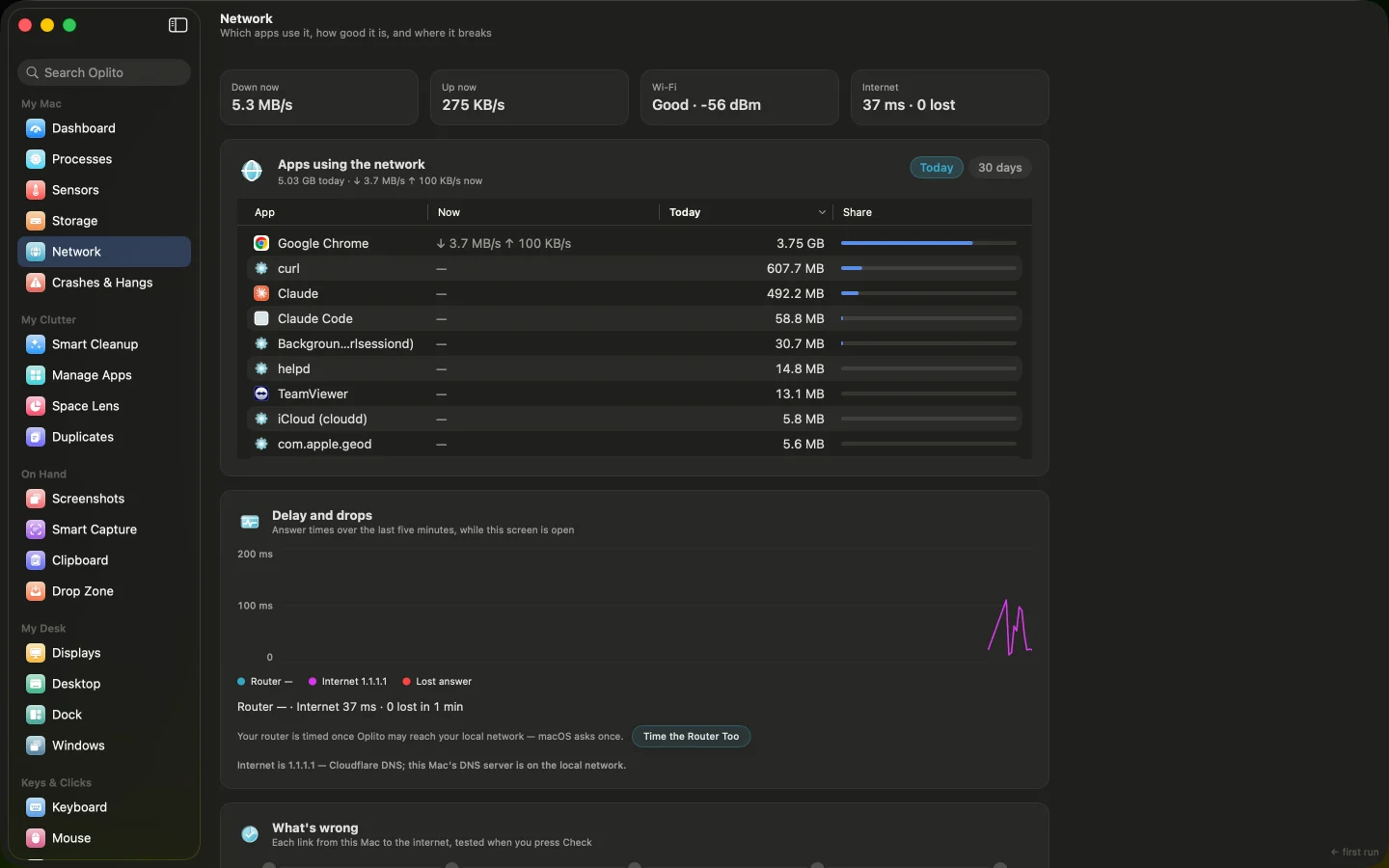
A capture of Oplito, running on a Mac. Its readings are that Mac’s.
Film
See Network at work
What Network does
Which apps use the network, how the Wi-Fi is, how fast and steady the internet is, and where a connection breaks. It only shows; it never blocks anything.
Who is using my data?
Each app's share of today as a bar, with 30 days of history on this Mac, and who an app is talking to right now.
Why is the internet bad?
One Check follows This Mac, Wi-Fi, Router, DNS and Internet, and marks where it breaks in red with a sentence.
Is my Wi-Fi crowded?
See signal, noise and channel, the networks nearby by channel, and which clearer channel to set on your router.
How it works
How to use Network
- 1
Open Network and read the four numbers: down, up, Wi-Fi and the internet's answer time.
- 2
Check Apps using the network, and click an app to see who it talks to.
- 3
Press Check to find where a problem breaks, or Test to measure speed.
- 4
Open Wi-Fi to see Channels nearby, and set the clearer channel on your router.
Details
The details
What you see
- Apps using the network Each app's bar for today, with download and upload now. A helper counts as its app. Opening an app shows who it talks to.
- Delay and drops A five-minute graph of the router's and the internet's answer times, with lost answers in red.
- What's wrong Press Check to test the path link by link. The broken link turns red with one plain sentence.
- Speed test Press Test for download, upload and responsiveness as dials, with what that means for calls. It takes about twenty seconds.
- Wi-Fi and connection Signal, channel, band, rate and security, plus each interface, a VPN when the system names one, and the DNS servers timed.
What it never does
- It never blocks an app or changes anything on the network.
- It calls a connection a VPN only when the system names one.
- It sends no notifications; data warnings show on screen.
- App history
- Per app, per day, for 30 days, kept on this Mac
- Today · 30 days
- Switch the apps card between the two views
- Delay graph
- Router and internet answer times over five minutes
- Speed test
- About twenty seconds, on Test only, against Apple's servers
- Public address
- Off until you turn it on; one request to ipinfo.io when opened
- Data warnings
- Once per amount per day, shown on screen; no notifications
- Wi-Fi
- Signal and noise with a word, channel, band, width, rate, standard, security
- Not offered
- Blocking an app; the screen only shows
- VPN
- Named only when the system names one
Privacy
Permissions and privacy
Live readings stay on your Mac. The speed test talks to Apple's servers, only on Test. The public address looks up ipinfo.io, only if you switch it on.
Permissions it needs
Local Network, asked once, only when you press Time the Router Too or Check. Location is needed for the Wi-Fi network's name. Reading apps' network use needs no permission.
What it reads
Each app's network use, the Wi-Fi connection, and how quickly the router and the internet answer.
What leaves your Mac
Only what you start: the speed test talks to Apple's servers when you press Test, and the public address asks ipinfo.io only if you switch it on.
Questions about Network
Can it block an app from the network?
No. Network only shows what is happening. Nothing on the network is changed.
Does it run in the background?
Live readings run only while the page is open. The 30-day history is sampled once a minute while the row is on, and stops when you turn Network off in Features.
What leaves my Mac?
Only what you start: the speed test uses Apple's servers, and the public address, if switched on, asks ipinfo.io. The router and DNS answer-time checks are shown on screen.
Can it tell a VPN?
Only when the system names one. Other tunnels, such as iCloud Private Relay, cannot be told apart, so they are not called a VPN.

Every tool. All the AI. One price.
All 30 tools and every AI feature for $99 once, or $39 a year. Try them all free for 7 days at launch, cancel any time.
One email at launch, and nothing else · macOS 26 on Apple silicon