 Oplito
See what runs, end it safely
A Mac process monitor that tells you what breaks before you quit
Processes lists every running process with its processor and memory use, and its quit flow tells you what the thing is and what breaks before it offers to end it.
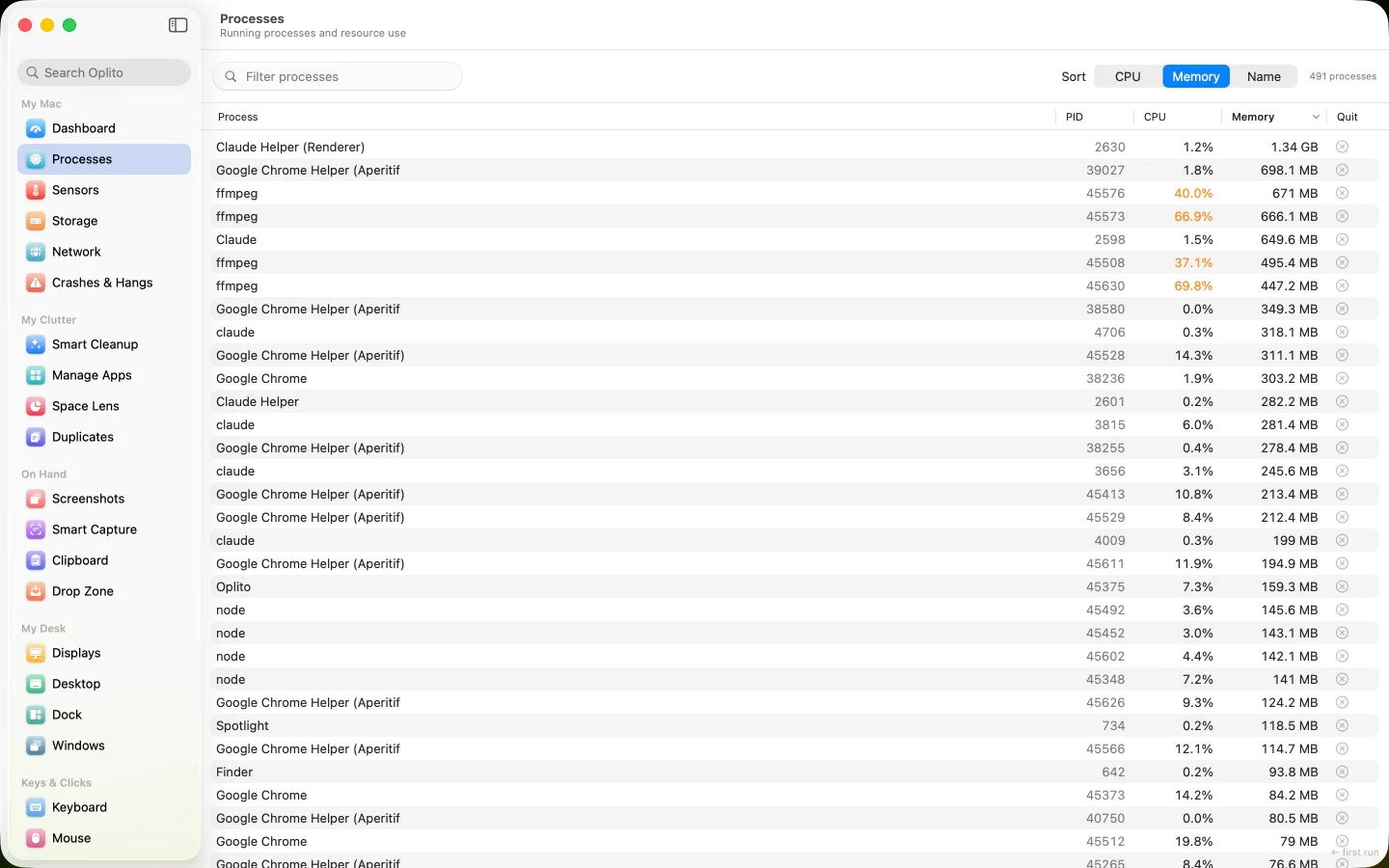
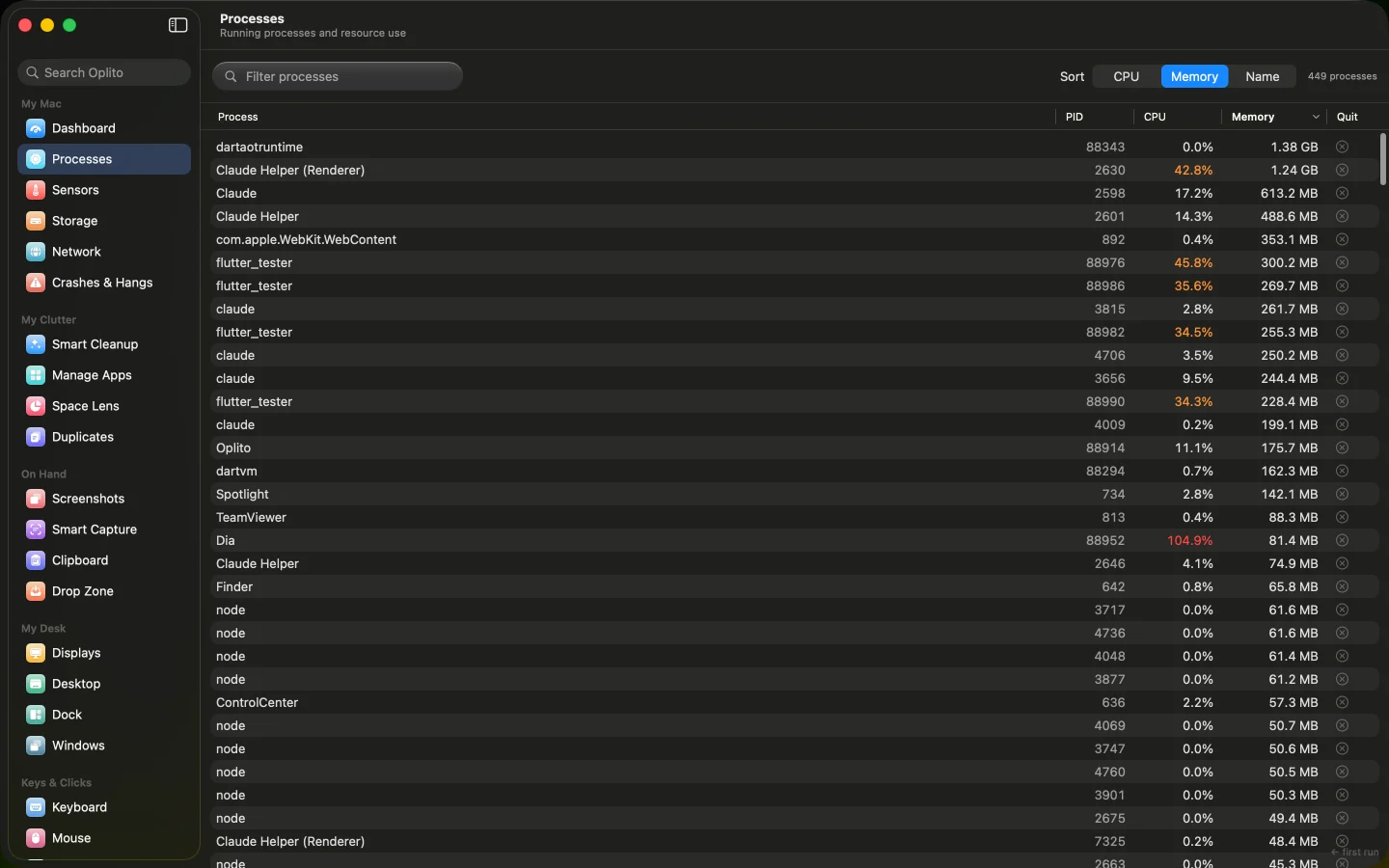
A capture of Oplito, running on a Mac. Its readings are that Mac’s.
Film
See Processes at work
What Processes does
Every running process with its processor and memory use, and a quit flow that tells you what the thing is and what breaks before it offers to end it.
What is this thing?
Before offering to quit anything, Oplito shows its name, path, how long it has run, and what else belongs to it.
Find what is slowing you
Sort by CPU or memory to see which process is pinning the Mac, from the list or from a Dashboard card.
Quit without breaking things
Quitting always asks politely first. Processes that could end your session are protected, and data-holding ones are never force-killed.
How it works
How to use Processes
- 1
Sort by CPU, Memory or Name, from the toolbar or the column header.
- 2
Hover a row and click its quit button to open the termination plan.
- 3
Read what it is and what belongs to it, then choose Let it close its own files.
- 4
If it is still running, use Force quit, or Open Activity Monitor for protected ones.
Details
The details
What you see
- A live list One row per process: name, PID, CPU percent tinted by load, and memory. A quit button appears when you hover a row.
- A termination plan Quit opens a plan: what it is, its children (which get orphaned) and siblings, and then the ask. Its parent is named but never signalled.
- Polite first "Let it close its own files" sends a graceful quit and then checks whether the process is really gone.
- Force quit is a second step It appears only after a polite ask has failed, and never for a process that may be writing data.
- Protected processes kernel_task, launchd, WindowServer and loginwindow are labelled Managed by macOS and have no quit button.
What it never does
- It never offers to quit kernel_task, launchd, WindowServer or loginwindow; they are marked Managed by macOS.
- It never force-quits databases, backup engines or file-sync agents.
- Force quit only appears after a polite ask has failed.
- Sort
- CPU · Memory · Name, from the toolbar or the column header
- Columns
- Process · PID · CPU · Memory
- Count
- A live total, for example "531 processes"
- Outcomes shown
- Still running · Signalled, can't confirm · No longer running · Oplito refused
- Never quit
- kernel_task, launchd, WindowServer, loginwindow
- Data-risk tier
- Graceful ask only; databases, backup engines and file-sync agents are never forced
- Homebrew services
- Offers brew services stop for the formula where it applies
- From the Dashboard
- Opens already sorted by CPU or memory, once
- Remembered
- Sort and filter are not kept between launches
Privacy
Permissions and privacy
Nothing leaves your Mac. The list is read locally and no file is touched or deleted.
Permissions it needs
None to ask for. What Oplito can read about another process is decided by macOS; unreadable ones are shown as Unidentified with their path rather than a guess.
What it reads
The list of running processes, as much as macOS lets an app read; unreadable ones show as Unidentified with their path.
What leaves your Mac
Nothing. The list is read locally and no file is touched or deleted.
Questions about Processes
Can I lose data by quitting?
Quitting is irreversible and unsaved work in that process is lost. That is why the ask is graceful first, and data-holding tools are never force-quit.
Why is there no quit button on some rows?
Four system processes would end your session or the Mac. They are marked Managed by macOS and cannot be quit here.
Why can't I force quit a database?
Databases, backup engines and file-sync agents only get the graceful ask. Oplito points you to Activity Monitor for anything beyond that.
Is there an active-only filter?
Not on this screen. You can filter by name and sort by CPU or memory.

Every tool. All the AI. One price.
All 30 tools and every AI feature for $99 once, or $39 a year. Try them all free for 7 days at launch, cancel any time.
One email at launch, and nothing else · macOS 26 on Apple silicon