 Oplito
This Mac, right now
A Mac system monitor that shows its workings
Dashboard is the first screen Oplito opens on: what this Mac is and what it is doing, with a health ring that shows its workings and cards that each open something deeper.
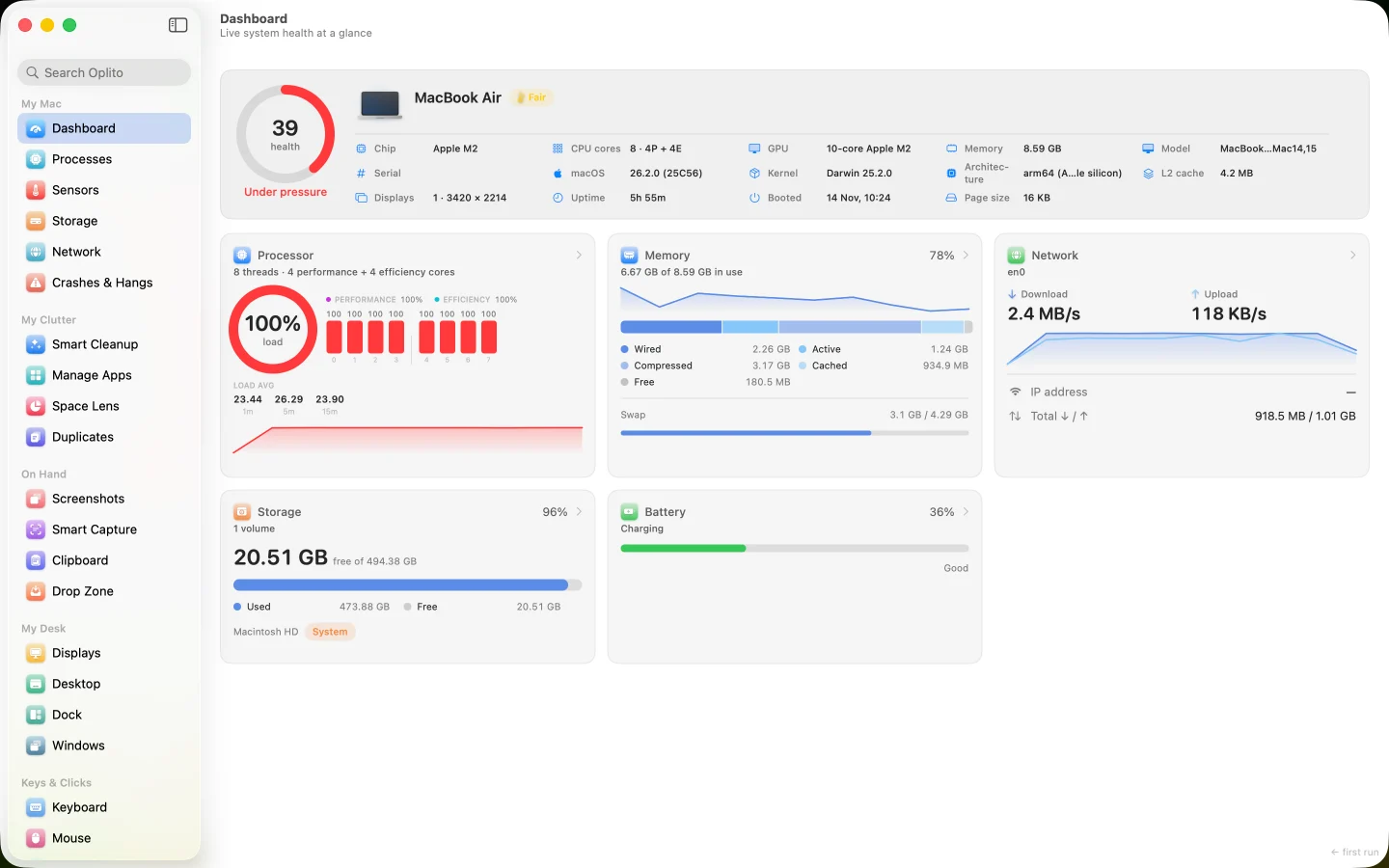
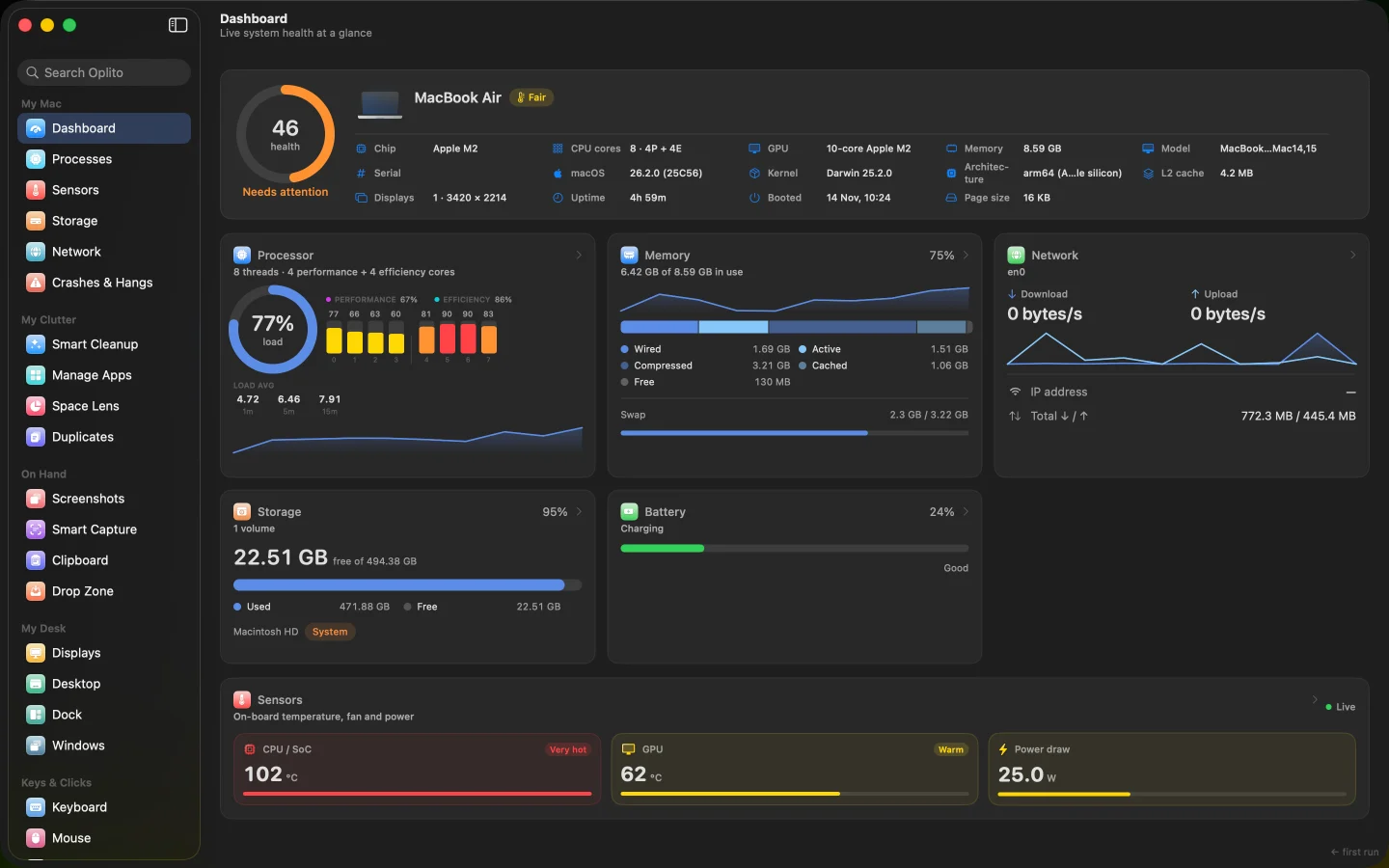
A capture of Oplito, running on a Mac. Its readings are that Mac’s.
Film
See Dashboard at work
What Dashboard does
The first screen you see: what this Mac is and what it is doing, with a health ring that shows its workings and cards that each open something deeper.
One look tells you
Processor, memory, network, storage and battery sit on one screen, so you can tell whether the Mac is fine without opening anything.
A score you can question
The health ring never shows a bare number. Touch it and it lists what cost points, largest first.
Know exactly what you own
Chip, cores, memory, model, serial, macOS version, uptime and more are listed beside the ring, in one place.
How it works
How to use Dashboard
- 1
Open Oplito. The Dashboard is the screen it opens on.
- 2
Click the health ring to see what lowered the score.
- 3
Click a card, such as Processor or Memory, to open its page.
- 4
Choose Show all processes to jump to Processes, already sorted the way you came.
Details
The details
What you see
- A hero band A health ring beside your Mac's identity: chip and cores, GPU, memory, model, serial, macOS and kernel, displays, uptime, boot time.
- A grid of cards Processor with a per-core view, Memory, Network with up and down sparklines, Storage volumes, and Battery. A Mac with no battery has no Battery card.
- A sensors strip Where the Mac has the readings, SoC and GPU temperature, fan speed and system power, each tinted from Cool to Critical.
- The ring shows its workings The score starts at 100. Touching the ring lists what lowered it, in your terms, largest first. It never acts on the score.
- Figures hold still Live figures keep the width of the widest they can read, and load moves in quarters, so nothing jumps between readings.
What it never does
- It changes nothing. Every control is navigation or Reveal in Finder.
- Its score is never a bare number: touch the ring and it lists what cost points.
- Cards can't be rearranged yet; which appear, and their order, are fixed.
- Health bands
- 85+ Running smoothly · 65–84 In good shape · 40–64 Needs attention · below 40 Under pressure
- Score inputs
- Processor use, memory use, a nearly full startup disk, and the Mac's thermal state
- Cards that push in
- Processor, Memory, Network, Battery
- Cards that leave
- Storage and the sensors strip open their own sidebar rows
- Process detail
- Identity, PID, parent, user, state, threads, virtual size, CPU time, page faults, Reveal in Finder
- Grid
- Adapts to the window; cards never stretch or leave gaps
- First reading
- Shows "Reading this Mac…" until the first sample lands
- Settings
- None; which cards appear and their order are fixed
Privacy
Permissions and privacy
Nothing leaves your Mac. The Dashboard only reads this Mac's own figures and changes nothing.
Permissions it needs
None. Everything on this screen is readable without a permission. Names and paths of other users' processes are limited by macOS itself.
What it reads
This Mac's own figures: processor, memory, network, storage, battery and, where the Mac has them, its sensors.
What leaves your Mac
Nothing.
Questions about Dashboard
What does the health score mean?
It starts at 100 and loses points for processor use, memory use, a nearly full startup disk and thermal state. The weightings are Oplito's own; the readings are not.
Can the Dashboard change anything?
No. Every control is navigation or Reveal in Finder. Quitting a process is done in Processes, reached by hand-off.
Why is there no Battery card?
Your Mac has no battery. The card is left out rather than greyed, since a disabled card would suggest a failed reading.
Can I rearrange the cards?
Not yet. Which cards appear and in what order is fixed.

Every tool. All the AI. One price.
All 30 tools and every AI feature for $99 once, or $39 a year. Try them all free for 7 days at launch, cancel any time.
One email at launch, and nothing else · macOS 26 on Apple silicon