 Oplito
Every sound, app by app
A Mac sound control app with a volume for each app
See every output and microphone on your Mac, switch between them, and set each app's volume on its own, up to 200%.
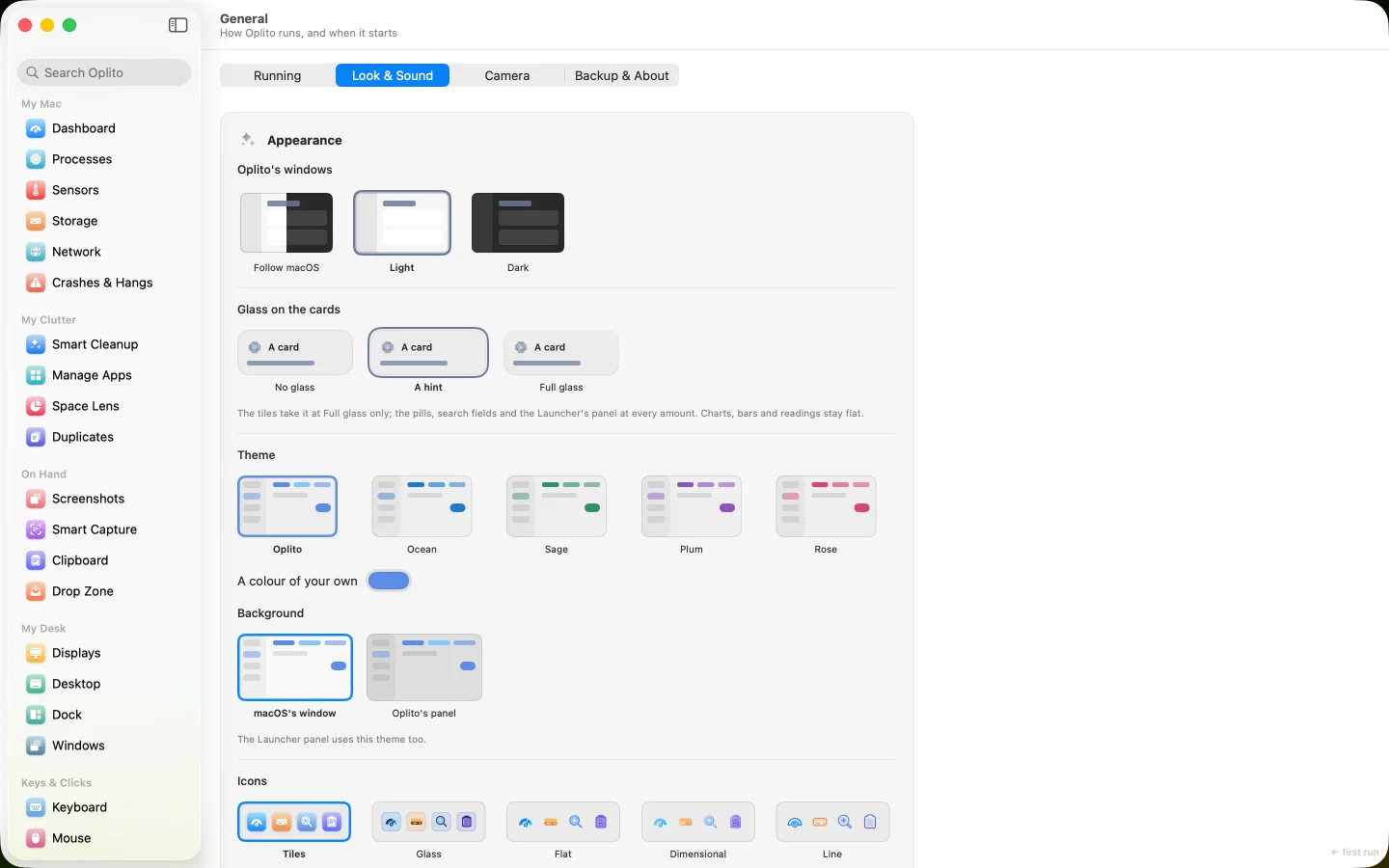
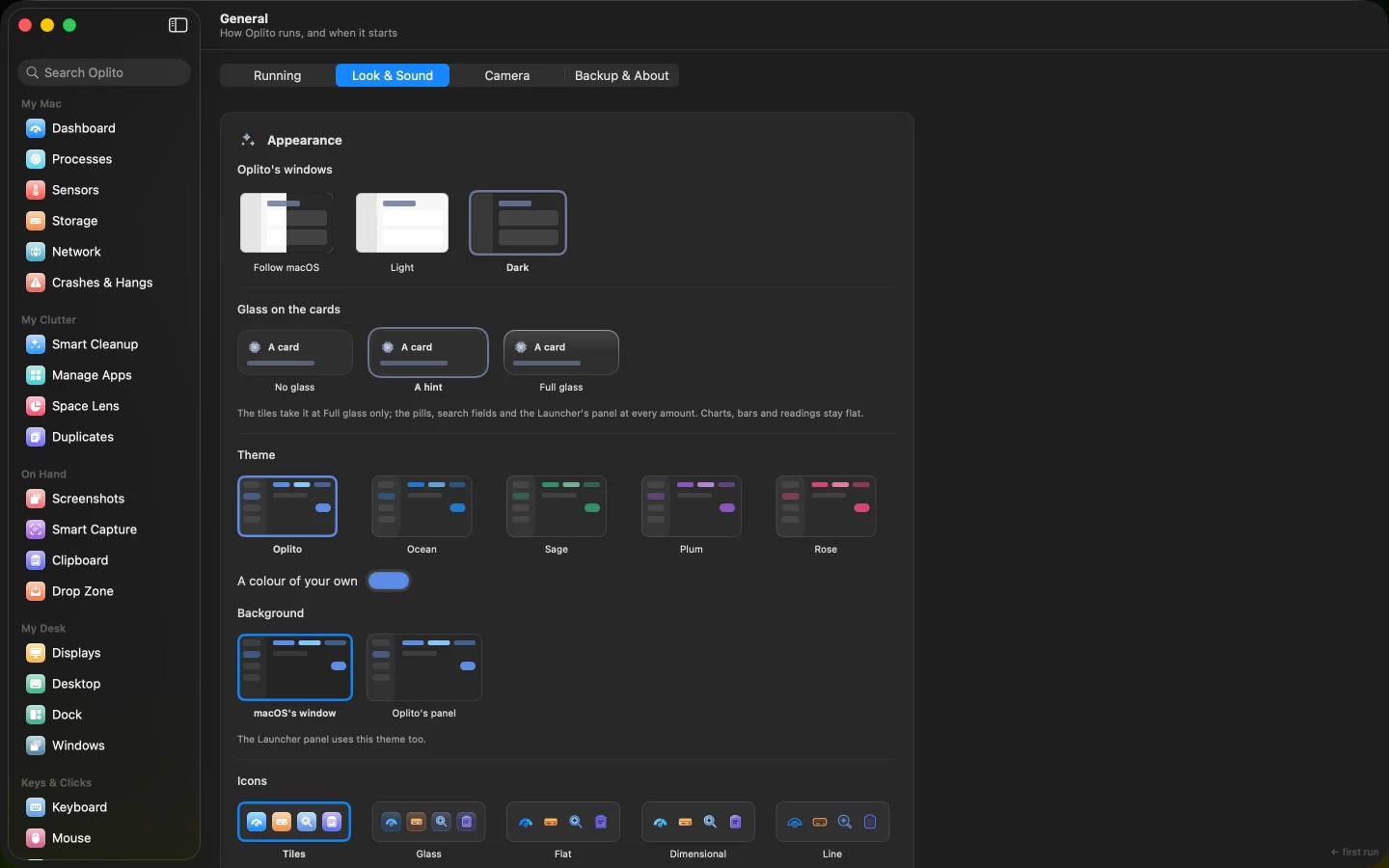
A capture of Oplito, running on a Mac. Its readings are that Mac’s.
What Sound does
See every output and microphone on your Mac, switch between them, and set each app's volume on its own, up to 200%.
One app is too loud
Set Music, a browser or a call app to its own level, from 0 to 200%, without touching the Mac's volume.
Sound lands on the wrong device
Keep sound on your speakers, keep a microphone, or pin a level. Oplito puts it back when another app moves it.
Headphones, speakers, many devices
Switch output in one click, switch automatically when a device connects, or save an audio setup and recall it later.
How it works
How to use Sound
- 1
Open Sound and pick Output or Input to see every device.
- 2
Click Use on a device to play or record through it.
- 3
Open Apps and drag an app's slider, or mute it.
- 4
Save the whole arrangement under Setups to recall it with one click.
Details
The details
What you see
- Every device, named Each output and input is listed with how it connects: built-in, Bluetooth, USB, HDMI, DisplayPort, AirPlay or virtual. The list updates as devices come and go.
- Each app at its own level Apps playing sound are listed by name with a slider, mute and their own output. At 100%, unmuted and following the default, Oplito does nothing to the app.
- A limiter past 100% Boosting an app up to 200% goes through a limiter, so a boosted sound never clips. If something fails, the app's sound plays normally.
- Missing controls are said If a device has no balance or no level control, the card says so in words instead of showing a dead slider.
- Meters and tests A peak meter sits under each app Oplito is already controlling. Hold a button to test the microphone, or play a tone left then right.
What it never does
- It never records what you hear; sound is adjusted live.
- It never takes over your volume keys unless you switch that on.
- It leaves Zoom and pro-audio apps alone, from a list you can edit.
- Per-app volume
- 0 to 200%, limiter past 100%
- Volume keys
- Off until switched on; ⌥⇧ for fine steps
- Never controlled
- Zoom and pro-audio apps, editable list
- Equaliser
- Ten bands, 31 Hz to 16 kHz, ±12 dB; off until switched on
- Equaliser presets
- Flat, Bass boost, Bass cut, Treble boost, Voice, Loudness, Small speakers
- Quiet hours
- A volume limit between two times; off until switched on
- Ducking
- Lowers Music and Spotify to 20% during calls; off until switched on
- Speaker test
- 660 Hz tone, left then right
- Settings lock
- Keep sound, a microphone or a level in place
- Also
- Multi-output, audio setups, hide devices, Bluetooth battery
Privacy
Permissions and privacy
Nothing leaves your Mac. Sound is adjusted live and never recorded. The microphone test opens the microphone only while you hold the button, and keeps nothing.
Permissions it needs
System Audio Recording, asked the first time an app's slider leaves 100%. Accessibility, only when you switch on Volume keys. Automation for Music or Spotify, only if you use Pause music during calls. Listing and switching devices needs none.
What it reads
Your audio devices, and each app's sound once its slider leaves 100%.
What leaves your Mac
Nothing. The microphone test opens the microphone only while you hold the button.
Questions about Sound
Can I really go above 100% for an app?
Yes, up to 200% per app. A limiter takes over past 100% so a boosted sound never clips.
Does it take over my volume keys?
Only if you switch it on. It is off by default. Once on, the keys act on the device that is playing, with a sound HUD.
Which apps can't be adjusted?
Zoom and pro-audio apps such as Logic, GarageBand, Ableton and Pro Tools are never touched by default. The list is editable and each is said on its row.
Does it record what I hear?
No. Per-app volume needs macOS's System Audio Recording permission, but nothing is recorded or kept.

Every tool. All the AI. One price.
All 30 tools and every AI feature for $99 once, or $39 a year. Try them all free for 7 days at launch, cancel any time.
One email at launch, and nothing else · macOS 26 on Apple silicon